
Troubleshoot a deliberately broken Azure network in 60–75 minutes with Azure PowerShell and Network Watcher. You will deploy two private Ubuntu VMs, activate an overriding NSG deny and a blackhole route at the same time, diagnose each layer independently, restore connectivity, verify HTTP 200, and delete the complete lab.
WORKSHOP AT A GLANCE
Level: Beginner to intermediate
Time: 60–75 minutes
Region: West Europe
Estimated lab cost: about €0.03 of B1s compute for 75 minutes, plus small disk charges
Public exposure: none
Cleanup: mandatory and included
LEARNING OBJECTIVES
By the end of the workshop, you will be able to:
• Explain why a passing NSG check does not prove end-to-end connectivity.
• Use IP Flow Verify to identify the exact NSG rule that allows or denies a flow.
• Read effective security rules and understand priority processing.
• Use Next Hop to identify the route Azure selects for a destination.
• Read effective routes and recognize longest-prefix matching.
• Use Run Command to test private-only VMs without SSH or public IP addresses.
• Repair security and routing faults in the correct order.
• Delete the complete workshop environment while preserving shared services.
PREREQUISITES
• An Azure subscription with permission to create resource groups, networks, and virtual machines.
• Azure PowerShell with Az.Accounts, Az.Network, and Az.Compute.
• PowerShell 7 or Windows PowerShell 5.1.
• Local ssh-keygen support for a temporary key pair.
• Quota for two Standard_B1s VMs in West Europe.
ARCHITECTURE AND IP PLAN
The lab uses one VNet and two subnets. The application VM sends a request to the data VM on TCP 8080. Both VMs are private-only. Azure Run Command provides VM-side tests without creating a public management path.
Two faults are active at the beginning. A priority-100 NSG rule denies the data flow before the intended priority-200 allow rule is evaluated. A more-specific 10.40.2.0/24 user route sends the same traffic to next hop None, which discards it. Fixing only one layer is therefore not enough.
Resource group: rg-bcwc-netwatcher-workshop-weu
VNet: vnet-bcwc-netwatcher-weu — 10.40.0.0/16
Application subnet: snet-app — 10.40.1.0/24
Data subnet: snet-data — 10.40.2.0/24
Application VM: vm-bcwc-app-weu — 10.40.1.4
Data VM: vm-bcwc-data-weu — 10.40.2.4
Test service: TCP 8080
STEP 1 — AUTHENTICATE SAFELY
Authenticate interactively and select the subscription by name. Display only the subscription name and Azure environment. Never place email addresses, tenant IDs, subscription IDs, tokens, passwords, or key material in workshop output.
Connect-AzAccount
Set-AzContext -Subscription 'Visual Studio Enterprise Subscription'
Get-AzContext | Select-Object @{n='Authentication';e={'Succeeded'}},
@{n='Subscription';e={$_.Subscription.Name}},
@{n='Environment';e={$_.Environment.Name}}
Figure 1 — PowerShell authentication succeeded with a privacy-safe subscription context.

STEP 2 — SET VARIABLES AND RUN PREFLIGHT
Use reusable variables and stop before creation if the resource group already exists. The preflight checks provider registration, required diagnostic cmdlets, B1s quota, the Ubuntu image, the existing West Europe Network Watcher, and the current short-lab estimate.
$Location = 'westeurope'
$ResourceGroupName = 'rg-bcwc-netwatcher-workshop-weu'
$VmSize = 'Standard_B1s'
$AppIp = '10.40.1.4'
$DataIp = '10.40.2.4'
$DataPort = 8080
Figure 2 — Provider, quota, image, cmdlet, Network Watcher, name-collision, and cost checks passed.

STEP 3 — CREATE THE ISOLATED RESOURCE GROUP
Keeping every lab-created component in one temporary resource group makes ownership and cleanup unambiguous. The pre-existing regional Network Watcher is outside this ownership boundary.
New-AzResourceGroup -Name $ResourceGroupName -Location $Location -Tag @{
Workshop = 'Azure Network Watcher Troubleshooting'
Lifecycle = 'Temporary'
}
Figure 3 — The isolated workshop resource group was created in West Europe.

STEP 4 — CREATE THE VNET AND PRIVATE SUBNETS
The application and data tiers receive separate subnets inside one VNet. That creates clear security and routing boundaries while keeping the healthy path VNet-local.
$AppSubnet = New-AzVirtualNetworkSubnetConfig -Name 'snet-app' -AddressPrefix '10.40.1.0/24'
$DataSubnet = New-AzVirtualNetworkSubnetConfig -Name 'snet-data' -AddressPrefix '10.40.2.0/24'
New-AzVirtualNetwork -Name 'vnet-bcwc-netwatcher-weu' `
-ResourceGroupName $ResourceGroupName -Location $Location `
-AddressPrefix '10.40.0.0/16' -Subnet $AppSubnet,$DataSubnet
Figure 4 — The VNet and both private subnets use the planned address ranges.

STEP 5 — CREATE THE CORRECT AND BROKEN NSG RULES
NSG rules are evaluated from the lowest priority number upward. The priority-100 deny matches first, so Azure never reaches the intended priority-200 allow for this flow. Attach the NSG only to snet-data.
$BrokenDeny = New-AzNetworkSecurityRuleConfig -Name 'Deny-App-TCP8080-Broken' `
-Access Deny -Protocol Tcp -Direction Inbound -Priority 100 `
-SourceAddressPrefix '10.40.1.0/24' -SourcePortRange '*' `
-DestinationAddressPrefix '10.40.2.0/24' -DestinationPortRange 8080
$CorrectAllow = New-AzNetworkSecurityRuleConfig -Name 'Allow-App-TCP8080' `
-Access Allow -Protocol Tcp -Direction Inbound -Priority 200 `
-SourceAddressPrefix '10.40.1.0/24' -SourcePortRange '*' `
-DestinationAddressPrefix '10.40.2.0/24' -DestinationPortRange 8080
Figure 5 — The priority-100 deny overrides the intended priority-200 allow.

STEP 6 — CREATE THE BLACKHOLE ROUTE
The application subnet receives a route table containing 10.40.2.0/24 with next hop None. That prefix is more specific than the VNet’s 10.40.0.0/16 system route, so it wins and discards data-subnet traffic.
$Blackhole = New-AzRouteConfig -Name 'Broken-Blackhole-Data' `
-AddressPrefix '10.40.2.0/24' -NextHopType None
New-AzRouteTable -Name 'rt-bcwc-app-weu' `
-ResourceGroupName $ResourceGroupName -Location $Location -Route $Blackhole
Figure 6 — The application route table contains the intentional 10.40.2.0/24 blackhole.

STEP 7 — DEPLOY TWO PRIVATE UBUNTU VMS
Create one NIC in each subnet with the documented static private address, then deploy Ubuntu 22.04 LTS Gen2 on Standard_B1s. Do not assign public IPs. Cloud-init installs no packages: it creates a small identity page and runs the preinstalled Python HTTP server as a systemd service on the data VM.
Figure 7 — Both private Ubuntu B1s VMs reached Succeeded provisioning state.

STEP 8 — VERIFY PRIVATE ADDRESSES AND EXPOSURE
Never infer exposure from a VM name. Query both NIC IP configurations and confirm the static private addresses and the absence of public IP references.
Get-AzNetworkInterface -ResourceGroupName $ResourceGroupName |
Select-Object Name,
@{n='PrivateIp';e={$_.IpConfigurations.PrivateIpAddress}},
@{n='PublicIpAttached';e={[bool]$_.IpConfigurations.PublicIpAddress}}
Figure 8 — Both NICs have the planned private addresses and no public IPs.

STEP 9 — PROVE THE DATA SERVICE IS HEALTHY LOCALLY
Before blaming the network, test the service on its own VM. Run Command confirms that bcwc-data.service is active and the loopback request returns HTTP 200 with the expected VM identity.
Invoke-AzVMRunCommand -ResourceGroupName $ResourceGroupName `
-VMName 'vm-bcwc-data-weu' -CommandId RunShellScript `
-ScriptString "curl -sS -o /dev/null -w '%{http_code}' http://127.0.0.1:8080/"
Figure 9 — The data service is active and returns HTTP 200 locally on port 8080.

STEP 10 — REUSE THE EXISTING NETWORK WATCHER
Network Watcher is a regional diagnostic service. This lab discovers and reuses the existing West Europe instance. It does not create, modify, or delete the shared watcher or its resource group.
Get-AzNetworkWatcher | Where-Object Location -eq $Location |
Select-Object -First 1 Name,Location
Figure 10 — The existing West Europe Network Watcher is available and remains shared.

STEP 11 — REVIEW THE RESOURCE TOPOLOGY
The resource visualizer confirms the two private VMs, their NICs, the shared VNet, the data NSG, disks, and lab boot-diagnostics storage. Account and subscription controls are cropped from this genuine portal view.
Figure 11 — Azure Portal resource topology for the isolated workshop resource group.

FAILURE SYMPTOMS
STEP 12 — OBSERVE THE INITIAL TIMEOUT
Run an HTTP request from the application VM to 10.40.2.4:8080. It times out even though the data service passed its local test. At this point, do not start changing rules randomly. Diagnose one layer at a time.
Invoke-AzVMRunCommand -ResourceGroupName $ResourceGroupName `
-VMName 'vm-bcwc-app-weu' -CommandId RunShellScript `
-ScriptString "python3 -c \"import urllib.request; urllib.request.urlopen('http://10.40.2.4:8080/',timeout=5)\""
Figure 12 — The application-to-data request is blocked while both faults are active.

SECURITY DIAGNOSIS AND REPAIR
STEP 13 — RUN IP FLOW VERIFY
IP Flow Verify evaluates the proposed inbound TCP flow against effective NSG policy on the data VM’s NIC. Specify the real source and destination IPs and TCP port 8080. The result is Deny, and the returned rule name identifies the intentional priority-100 fault.
Test-AzNetworkWatcherIPFlow -Location $Location `
-TargetVirtualMachineId $DataVm.Id `
-TargetNetworkInterfaceId $DataNic.Id `
-Direction Inbound -Protocol TCP `
-RemoteIPAddress '10.40.1.4' -RemotePort 55000 `
-LocalIPAddress '10.40.2.4' -LocalPort 8080
Figure 13 — IP Flow Verify returns Deny and names the broken priority-100 rule.

STEP 14 — INSPECT EFFECTIVE SECURITY RULES
Effective security rules combine policy that applies through the NIC and subnet. The relevant output places the Deny at priority 100 before the Allow at priority 200. The first matching rule wins.
Get-AzEffectiveNetworkSecurityGroup `
-NetworkInterfaceName 'nic-bcwc-data-weu' `
-ResourceGroupName $ResourceGroupName
Figure 14 — Effective security rules explain why the deny is selected before the allow.

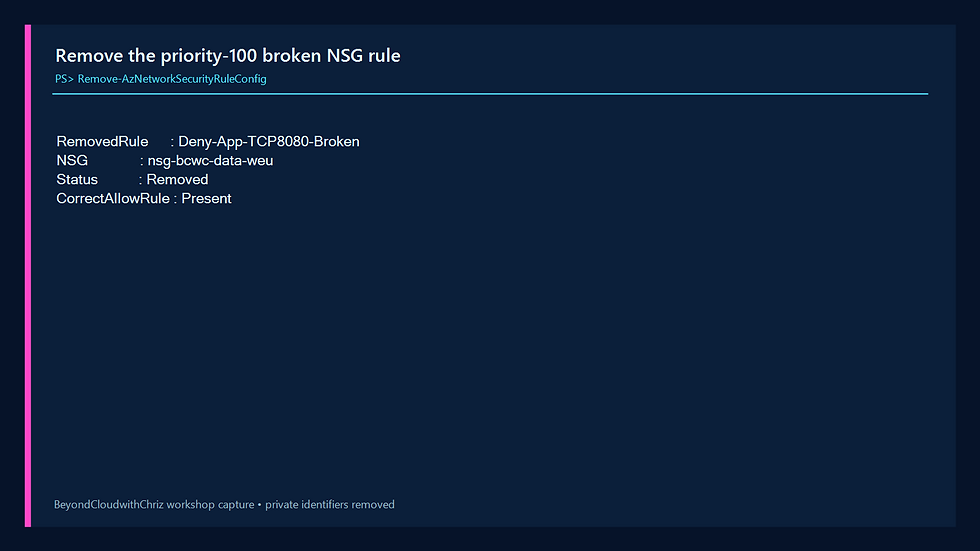
STEP 15 — REMOVE ONLY THE BROKEN DENY
Fix one fault at a time so each diagnostic result remains meaningful. Remove the priority-100 rule and keep the intended priority-200 allow.
$Nsg = Get-AzNetworkSecurityGroup -Name 'nsg-bcwc-data-weu' `
-ResourceGroupName $ResourceGroupName
Remove-AzNetworkSecurityRuleConfig -Name 'Deny-App-TCP8080-Broken' `
-NetworkSecurityGroup $Nsg | Set-AzNetworkSecurityGroup
Figure 15 — The broken deny was removed while the correct allow stayed present.
STEP 16 — PROVE THAT SECURITY PASSES BUT THE CONNECTION STILL FAILS
Rerun IP Flow Verify. It now returns Allow and identifies Allow-App-TCP8080. Then repeat the real VM-side HTTP request. The request still fails because IP Flow Verify answers an NSG question, not a routing question.
Figure 16 — IP Flow Verify returns Allow, but the real connection remains blocked.

ROUTING DIAGNOSIS AND REPAIR
STEP 17 — RUN NEXT HOP
Ask Network Watcher which next hop Azure selects from 10.40.1.4 to 10.40.2.4. None means the platform will discard the packet. The route source identifies the custom application route table.
Get-AzNetworkWatcherNextHop -Location $Location `
-TargetVirtualMachineId $AppVm.Id `
-TargetNetworkInterfaceId $AppNic.Id `
-SourceIPAddress '10.40.1.4' `
-DestinationIPAddress '10.40.2.4'
Figure 17 — Next Hop returns None and identifies the custom route as the cause.

STEP 18 — INSPECT EFFECTIVE ROUTES
The NIC has two relevant active routes. The default system route covers 10.40.0.0/16 with VnetLocal. The user route covers the narrower 10.40.2.0/24 prefix with next hop None. Azure chooses the longest matching prefix, so the /24 blackhole overrides the /16 VNet-local route.
Get-AzEffectiveRouteTable -NetworkInterfaceName 'nic-bcwc-app-weu' `
-ResourceGroupName $ResourceGroupName
Figure 18 — Effective routes show the active /24 blackhole overriding the broader /16 path.

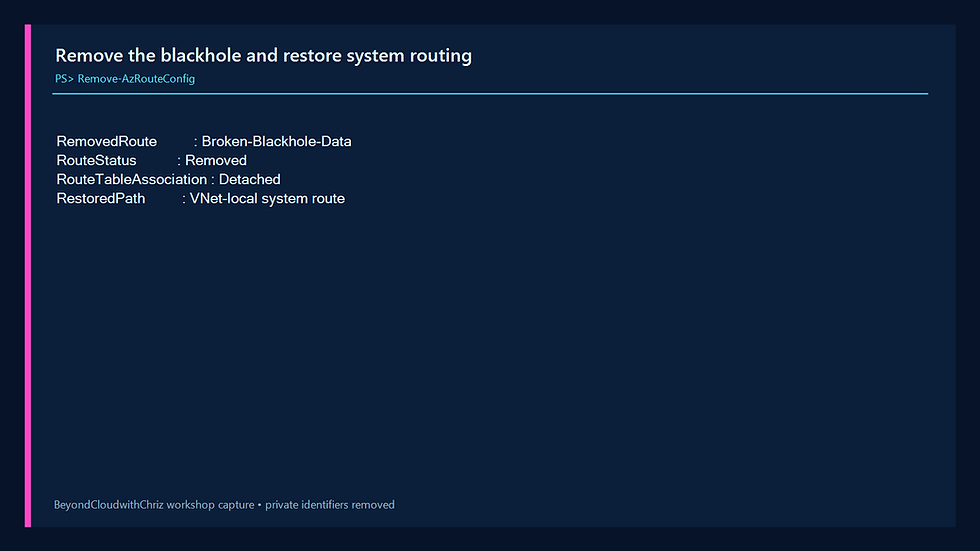
STEP 19 — REMOVE THE BLACKHOLE ROUTE
Remove Broken-Blackhole-Data. Because the route table is now empty, detach it from snet-app so Network Watcher and the NIC converge cleanly on the system route.
$RouteTable = Get-AzRouteTable -Name 'rt-bcwc-app-weu' `
-ResourceGroupName $ResourceGroupName
Remove-AzRouteConfig -Name 'Broken-Blackhole-Data' `
-RouteTable $RouteTable | Set-AzRouteTable
$VNet = Get-AzVirtualNetwork -Name 'vnet-bcwc-netwatcher-weu' `
-ResourceGroupName $ResourceGroupName
($VNet.Subnets | Where-Object Name -eq 'snet-app').RouteTable = $null
Set-AzVirtualNetwork -VirtualNetwork $VNet
Figure 19 — The blackhole is removed and snet-app returns to system routing.
STEP 20 — CONFIRM THE VNET-LOCAL NEXT HOP
Wait for control-plane convergence and rerun Next Hop. The installed Az.Network release reports VirtualNetwork; the portal describes the same path as VNet local. The source is now the system route instead of the custom route table.
Figure 20 — Next Hop changes from None to the system VNet

FINAL VALIDATION
STEP 21 — PROVE END-TO-END HTTP 200
Repeat the application-to-data request. It returns HTTP 200, and the response body identifies vm-bcwc-data-weu. This proves the service, NSG, and routing path now work together.
Figure 21 — The repaired private path returns HTTP 200 from the data VM.

TROUBLESHOOTING
IP Flow Verify still says Deny
Confirm the direction is Inbound, protocol is TCP, local IP is 10.40.2.4, local port is 8080, and remote IP is 10.40.1.4. Then check whether another lower-numbered rule still matches.
IP Flow Verify says Allow but the request fails
That is the lesson of this lab. Move to routing and service checks. Verify Next Hop, effective routes, the destination process, and the listening port.
Next Hop continues to show None after the route is removed
Check that the route is absent, confirm snet-app is detached from the empty route table, and inspect the NIC’s effective routes. Network Watcher results can take several minutes to refresh after control-plane changes.
Run Command times out
Wait for VM provisioning and the guest agent to report ready. This lab does not require inbound SSH, Bastion, or a VM public IP.
The data service fails locally
Fix the service before network diagnosis. Use systemctl status bcwc-data.service and confirm Python is listening on TCP 8080.
CLEANUP
STEP 22 — DELETE THE COMPLETE LAB
Delete only rg-bcwc-netwatcher-workshop-weu. Poll until the resource group is absent, then remove the temporary SSH key files. Do not delete the shared Network Watcher or its resource group.
Remove-AzResourceGroup -Name 'rg-bcwc-netwatcher-workshop-weu' -Force
while (Get-AzResourceGroup -Name 'rg-bcwc-netwatcher-workshop-weu' -ErrorAction SilentlyContinue) {
Start-Sleep -Seconds 10
}
Remove-Item $TemporaryPrivateKey,$TemporaryPublicKey -Force -ErrorAction SilentlyContinue
Figure 22 — The workshop resource group is not found, temporary keys are deleted, and no chargeable lab resources remain.

KNOWLEDGE CHECK
1. Why does priority 100 override priority 200 in an NSG?
Answer: Lower priority numbers are evaluated first, and evaluation stops at the first matching rule.
2. Why did the request still fail after IP Flow Verify changed to Allow?
Answer: IP Flow Verify validated the NSG decision, but the separate user route still discarded the packet.
3. Why did 10.40.2.0/24 override 10.40.0.0/16?
Answer: Azure routing uses longest-prefix matching. The /24 is more specific than the /16.
4. What does next hop None mean?
Answer: Azure intentionally drops traffic that matches the route.
5. Why use Run Command in this private-only lab?
Answer: It runs tests through the Azure control plane without adding public VM IPs, SSH ingress, Bastion, or package downloads.
6. Why must the shared Network Watcher remain after cleanup?
Answer: It existed before the lab and may serve unrelated resources. The workshop owns only its isolated resource group.
NEXT STEPS
Extend the troubleshooting pattern with Connection Troubleshoot, packet capture, NSG flow logs, or a deliberate DNS fault. The key habit is to gather evidence in layers: service health, security policy, route selection, then end-to-end validation.
WORKSHOP RESULT
You built two private Azure VMs, activated two independent network faults, used IP Flow Verify and effective security rules to repair the NSG, used Next Hop and effective routes to repair routing, proved HTTP 200 from the data VM, and deleted every lab-created resource while preserving the shared West Europe Network Watcher.
Comments