
Build a resilient, self-healing Azure web tier with the Azure CLI in PowerShell 7. In this deep dive, you will distribute Virtual Machine Scale Set instances across availability zones, load balance HTTP traffic, trigger CPU autoscaling, mark one application instance unhealthy, watch Azure replace it automatically, deploy application version v2 with a MaxSurge rolling upgrade, validate every result, and delete the complete lab.
WORKSHOP AT A GLANCE
Level: Intermediate
Time: 75–100 minutes, including the Azure automatic-repair grace period
Region: West Europe
Tooling: Azure CLI in PowerShell 7 plus Azure Portal verification
Compute: Standard_B1s
Scale range: 3–5 instances
Cleanup: mandatory and included
LEARNING OBJECTIVES
By the end of this workshop, you will be able to:
Explain Uniform VM Scale Sets and availability-zone placement.
Build a private VMSS backend behind a Standard Load Balancer.
Separate load-balancer traffic health from application-repair health.
Configure Azure Monitor autoscale rules based on Percentage CPU.
Generate a controlled CPU workload and prove a real scale-out event.
Configure the Application Health extension with rich health states.
Enable automatic repairs with the Replace action.
Simulate an unhealthy application instance without simulating a real zone outage.
Configure a rolling upgrade with MaxSurge and cross-zone upgrades.
Prove that every healthy backend runs application version v2.
Delete every workshop resource and temporary key.
PREREQUISITES
An Azure subscription with permission to create networking, load-balancing, VMSS, and autoscale resources.
Azure CLI 2.88 or newer.
PowerShell 7.
The local ssh-keygen command.
At least six available B-series vCPUs in West Europe. The lab normally uses three instances, can autoscale to five, and may create one temporary MaxSurge instance.
Standard_B1s availability in West Europe zones 1, 2, and 3.
COST AND SAFETY
This is a temporary lab. The main chargeable components are three to five Standard_B1s VMs, their Standard LRS operating-system disks, a Standard Load Balancer, and a Standard public IP. Cost depends on how long you keep the environment. Run the cleanup phase immediately after the final validation.
Every component is placed in rg-bcwc-vmss-deepdive-weu. The script stops if that group already exists, which prevents an accidental overwrite. VMSS instances have no public IP addresses. The only public ingress point is the Standard Load Balancer on TCP port 80.
ARCHITECTURE
Internet clients send HTTP traffic to one zone-redundant Standard public IP. The Standard Load Balancer checks /lbhealth and distributes new flows across healthy VMSS instances.
The scale set starts with three Uniform instances, with one instance in each West Europe availability zone. Azure Monitor can add instances when average CPU is above 50 percent. The Application Health extension checks /health inside each VM and reports the rich state Healthy or Unhealthy. Automatic repairs use that state and replace an unhealthy VM after the configured grace period.
For the final exercise, a rolling upgrade updates the application from v1 to v2. MaxSurge creates a new instance with the newest model before an old instance is removed, helping the service preserve its target capacity during the rollout.
IP AND RESOURCE PLAN
Resource group: rg-bcwc-vmss-deepdive-weu
VNet: vnet-bcwc-vmss-weu — 10.60.0.0/16
Web subnet: snet-web — 10.60.1.0/24
NSG: nsg-bcwc-vmss-web-weu
Public IP: pip-bcwc-vmss-lb-weu — Standard, static, zone-redundant
Load balancer: lb-bcwc-vmss-weu
Frontend: fe-public
Backend pool: be-web
Traffic probe: hp-http — HTTP /lbhealth on port 80
VM Scale Set: vmss-bcwc-web-weu — Uniform, Standard_B1s, zones 1–3
Autoscale setting: as-bcwc-vmss-weu — minimum 3, default 3, maximum 5
DOWNLOAD THE COMPLETE SCRIPT
The complete reusable script is named azure-vmss-deep-dive-workshop.ps1. It contains these phases:
Authenticate, Preflight, Build, BuildVmss, ConfigureHealth, Baseline, Autoscale, AutomaticRepair, RollingUpgrade, Validate, Cleanup, and All.
Run one phase at a time while learning. The All phase is useful only after you understand that the automatic-repair phase includes the platform’s 30-minute grace period.
STEP 1 — AUTHENTICATE WITHOUT EXPOSING PRIVATE IDENTIFIERS
Keep the active subscription if it already has the intended display name. The screenshot output deliberately shows only the subscription name and Azure environment. Never publish account email, tenant ID, subscription ID, tokens, private keys, or full Azure resource IDs.
az account show --only-show-errors -o none
az account show `
  --query "{Authentication:'Succeeded',Subscription:name,Environment:environmentName}" `
  --output table
Figure 1 — Azure CLI authentication succeeded with a privacy-safe subscription context.

STEP 2 — DEFINE THE WORKSHOP VARIABLES AND RUN PREFLIGHT
The preflight checks the resource-group name, providers, B-series quota, zonal SKU availability, Ubuntu image, health extension, temporary-key path, and required commands before anything chargeable is created.
$Location = 'westeurope'
$ResourceGroupName = 'rg-bcwc-vmss-deepdive-weu'
$VmssName = 'vmss-bcwc-web-weu'
$VmSize = 'Standard_B1s'

.\azure-vmss-deep-dive-workshop.ps1 `
  -Phase Preflight `
  -SkipAuthentication
Figure 2 — West Europe preflight passed for providers, quota, zones 1–3, the Ubuntu image, and Application Health.

STEP 3 — BUILD THE ISOLATED RESOURCE GROUP AND NETWORK
The Build phase creates the resource group, NSG, VNet, subnet, public frontend, Standard Load Balancer, traffic probe, inbound rule, outbound rule, temporary SSH key, cloud-init, and VM Scale Set.
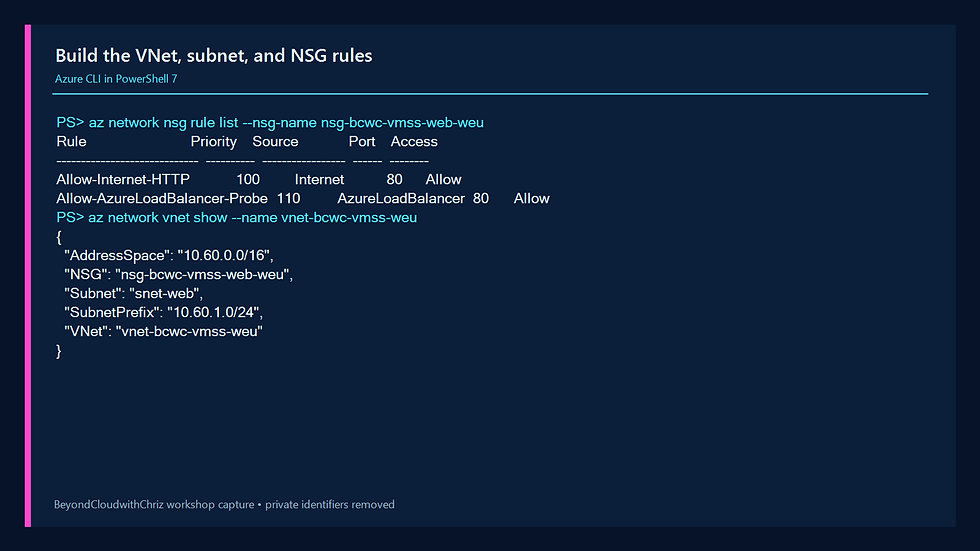
The NSG allows Internet clients to TCP port 80 and allows the AzureLoadBalancer service tag to probe port 80. No SSH rule is created because the lab uses Azure Run Command.
.\azure-vmss-deep-dive-workshop.ps1 `
  -Phase Build `
  -SkipAuthentication
Figure 3 — The isolated workshop resource group contains only the expected VMSS, networking, load-balancing, and autoscale resources.

Figure 4 — The VNet, subnet, and two explicit NSG rules match the architecture plan.
STEP 4 — UNDERSTAND THE TWO HEALTH ENDPOINTS
The Load Balancer and automatic repairs have different jobs, so this lab gives them separate endpoints:
/lbhealth is a traffic-admission check. A broken instance returns HTTP 503, and the Load Balancer removes it from new client flows.
/health is an application-state check for the Application Health extension. It returns HTTP 200 so the extension can read ApplicationHealthState: Healthy or ApplicationHealthState: Unhealthy.
Do not attach both a VMSS-level Load Balancer health-probe reference and the Application Health extension as automatic-repair sources. Azure automatic repairs support one VMSS health source at a time. The Load Balancer rule still keeps its own /lbhealth probe.
az network lb probe show `
  --resource-group $ResourceGroupName `
  --lb-name 'lb-bcwc-vmss-weu' `
  --name 'hp-http' `
  --query "{Probe:name,Protocol:protocol,Port:port,Path:requestPath,Interval:intervalInSeconds,Threshold:numberOfProbes}" `
  --output table
Figure 5 — The Load Balancer uses /lbhealth every five seconds and removes a backend after two failed probes.

STEP 5 — VERIFY ZONAL VMSS DEPLOYMENT
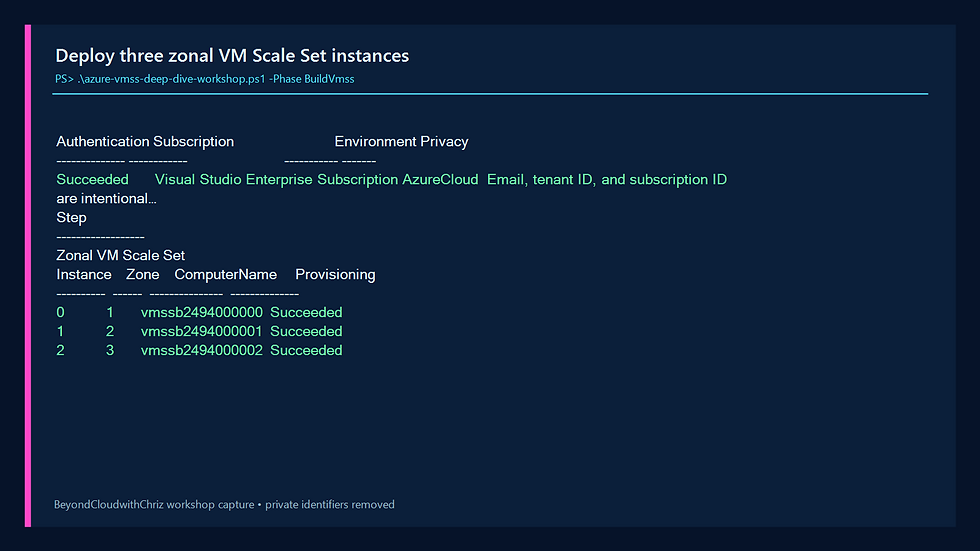
The scale set uses Uniform orchestration. Uniform instances share one model and are managed as a single fleet. Specifying zones 1, 2, and 3 creates zonal instances while the frontend public IP remains zone-redundant.
Current Azure CLI versions require explicit Uniform orchestration in scripts because default behaviors can change. The script also disables overprovisioning so the initial result contains exactly three instances.
az vmss list-instances `
  --resource-group $ResourceGroupName `
  --name $VmssName `
  --query "[].{Instance:instanceId,Zone:zones[0],ComputerName:osProfile.computerName,Provisioning:provisioningState}" `
  --output table
Figure 6 — The scale set has one successfully provisioned instance in each of zones 1, 2, and 3.
STEP 6 — ENABLE RICH APPLICATION HEALTH
Application Health version 2.0 uses rich states. The JSON response must include the exact ApplicationHealthState field. A custom field such as health: healthy is useful for people but does not replace the required field.
$HealthSettings = @{
  protocol = 'http'
  port = 80
  requestPath = '/health'
  intervalInSeconds = 5
  numberOfProbes = 2
} | ConvertTo-Json -Compress

$HealthSettings | Set-Content `
  -Path '.\application-health-settings.json' `
  -Encoding utf8NoBOM

az vmss extension set `
  --resource-group $ResourceGroupName `
  --vmss-name $VmssName `
  --name ApplicationHealthLinux `
  --publisher Microsoft.ManagedServices `
  --version 2.0 `
  --settings '.\application-health-settings.json'

az vmss update-instances `
  --resource-group $ResourceGroupName `
  --name $VmssName `
  --instance-ids '*'
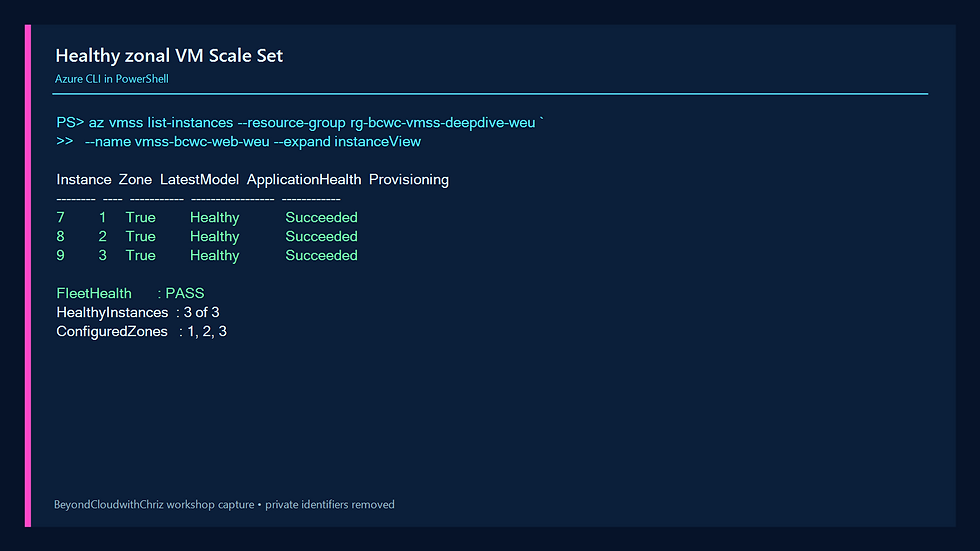
Figure 7 — Application Health is installed, the latest model is applied, and every instance reports Healthy.

STEP 7 — TEST THE LOAD-BALANCED V1 BASELINE
Azure Load Balancer uses a flow hash; it is not strict alternating round-robin. Create multiple new HTTP connections with unique query values. The response includes the computer name, availability zone, application version, and health state.
$PublicIp = az network public-ip show `
  --resource-group $ResourceGroupName `
  --name 'pip-bcwc-vmss-lb-weu' `
  --query ipAddress `
  --output tsv

1..18 | ForEach-Object {
  $Uri = "http://$PublicIp/?request=$_&nonce=$([guid]::NewGuid().ToString('N'))"
  Invoke-RestMethod -Uri $Uri -TimeoutSec 10 -DisableKeepAlive |
    Select-Object instance,zone,version,health
}
Figure 8 — Repeated HTTP 200 responses prove that version v1 is served from all three zones.

STEP 8 — CONFIGURE CPU AUTOSCALE
The autoscale profile starts at three instances and can grow to five. The scale-out rule adds one instance when average Percentage CPU is above 50 percent for one minute. A ten-minute cooldown prevents a second immediate scale-out during this short demonstration. The scale-in rule removes one instance when average CPU stays below 20 percent for five minutes.
$VmssId = az vmss show `
  --resource-group $ResourceGroupName `
  --name $VmssName `
  --query id `
  --output tsv

az monitor autoscale create `
  --resource-group $ResourceGroupName `
  --name 'as-bcwc-vmss-weu' `
  --resource $VmssId `
  --min-count 3 `
  --count 3 `
  --max-count 5

az monitor autoscale rule create `
  --resource-group $ResourceGroupName `
  --autoscale-name 'as-bcwc-vmss-weu' `
  --condition 'Percentage CPU > 50 avg 1m' `
  --scale out 1 `
  --cooldown 10

az monitor autoscale rule create `
  --resource-group $ResourceGroupName `
  --autoscale-name 'as-bcwc-vmss-weu' `
  --condition 'Percentage CPU < 20 avg 5m' `
  --scale in 1 `
  --cooldown 5
Figure 9 — The autoscale profile uses a 3–5 capacity range with separate scale-out and scale-in rules.

STEP 9 — GENERATE CPU LOAD THAT SURVIVES RUN COMMAND
A background process started with nohup can be cleaned up when Run Command finishes. A transient systemd unit survives the Run Command session and can be stopped predictably.
The base64 string below decodes to a tiny Python loop. It contains no secret or downloaded package.
$CpuScript = 'd2hpbGUgVHJ1ZToKICAgIHBhc3MK'
$InstanceIds = az vmss list-instances `
  --resource-group $ResourceGroupName `
  --name $VmssName `
  --query '[].instanceId' `
  --output tsv

foreach ($InstanceId in $InstanceIds) {
  az vmss run-command invoke `
    --resource-group $ResourceGroupName `
    --name $VmssName `
    --instance-id $InstanceId `
    --command-id RunShellScript `
    --scripts "echo $CpuScript | base64 -d > /tmp/bcwc_cpu_load.py; systemd-run --unit=bcwc-cpu-load --property=Restart=always /usr/bin/python3 /tmp/bcwc_cpu_load.py"
}
Azure Monitor metrics can arrive a few minutes after guest CPU rises. Wait for the metric instead of assuming the rule failed.
Figure 10 — Azure Monitor recorded the genuine autoscale scale-up event after average CPU reached 74.8 percent, increasing capacity from 3 to 4.

STEP 10 — VERIFY THE DEPLOYMENT IN THE AZURE PORTAL
Use the Portal only for visual confirmation. The screenshots are cropped to the resource content and exclude account email, tenant ID, subscription ID, notifications, and unrelated resources.
Figure 11 — Genuine Azure Portal inventory for the isolated VMSS workshop resource group.

Figure 12 — Genuine Azure Portal VMSS overview showing three zonal instances and the active scale configuration.

Figure 13 — Azure CLI model validation confirms Uniform orchestration, zones 1–3, backend-pool membership, and no public IP configuration on VMSS instances.

STEP 11 — ENABLE AUTOMATIC REPAIRS
Automatic repairs use Replace in this workshop. Replace deletes the unhealthy VM and creates a new VM from the latest scale-set model. The replacement may reuse the old instance slot or receive a new slot; this live run replaced slot 0 with slot 4 in the same zone. Azure CLI currently supports a 30–90 minute repair grace period; the lab uses 30 minutes.
az vmss update `
  --resource-group $ResourceGroupName `
  --name $VmssName `
  --enable-automatic-repairs true `
  --automatic-repairs-action Replace `
  --automatic-repairs-grace-period 30
The grace period prevents a newly created or recently changed instance from being repaired before it has had time to initialize.
STEP 12 — SIMULATE AN UNHEALTHY APPLICATION INSTANCE
This is a controlled application failure, not a real Azure availability-zone outage. Create the unhealthy flag on instance 0 and restart the local service. The application then returns rich state Unhealthy from /health and HTTP 503 from /lbhealth.
az vmss run-command invoke `
  --resource-group $ResourceGroupName `
  --name $VmssName `
  --instance-id 0 `
  --command-id RunShellScript `
  --scripts 'touch /opt/bcwc/unhealthy; systemctl restart bcwc-web.service; curl -sS http://127.0.0.1/health; curl -sS -o /dev/null -w "Load balancer probe: HTTP %{http_code}\n" http://127.0.0.1/lbhealth'
After two failed /lbhealth probes, new client requests use only the healthy instances. Automatic repairs starts its grace-period countdown from the explicit Unhealthy state.
Figure 14 — Azure CLI shows instance 0 Unhealthy while every successful Load Balancer response comes from healthy zones 2 and 3.

Figure 15 — The genuine Azure Portal instance inventory still reports the virtual machines as running during the repair grace period. This is an important distinction: power state does not prove application health; the Application Health evidence in Figure 14 does.

STEP 13 — WATCH AZURE REPLACE THE UNHEALTHY VM
Compare the fleet before and after the repair without printing any VM identity. Detect both supported outcomes: a new VM identity in the same slot, or a healthy replacement in a new slot after the old slot disappears.
$BeforeFleet = az vmss list-instances `
  --resource-group $ResourceGroupName `
  --name $VmssName `
  --query "[].{Instance:instanceId,Zone:zones[0],VmId:vmId}" `
  --output json | ConvertFrom-Json

# Poll until slot 0 disappears and a healthy zone-1 replacement exists.
do {
  Start-Sleep -Seconds 60
  $AfterFleet = az vmss list-instances `
    --resource-group $ResourceGroupName `
    --name $VmssName `
    --expand instanceView `
    --query "[].{Instance:instanceId,Zone:zones[0],VmId:vmId,Health:instanceView.vmHealth.status.code}" `
    --output json | ConvertFrom-Json

  $OldSlotGone = -not ($AfterFleet | Where-Object Instance -eq '0')
  $HealthyZone1 = $AfterFleet | Where-Object {
    $_.Zone -eq '1' -and $_.Health -eq 'HealthState/healthy'
  }
} until ($OldSlotGone -and $HealthyZone1)

[pscustomobject]@{
  ReplacedInstanceSlot = 0
  ReplacementSlot = $HealthyZone1.Instance
  VmIdentityChanged = $HealthyZone1.VmId -notin $BeforeFleet.VmId
  PrivateIdentifiers = 'Compared but intentionally not displayed'
}
Figure 16 — Automatic repair completed: the VM identity changed, capacity stayed at three, and the replacement became Healthy.

Figure 17 — Azure CLI confirms the resulting three-instance fleet is healthy across zones 1, 2, and 3.
STEP 14 — CONFIGURE A MAXSURGE ROLLING UPGRADE
Rolling upgrades update a controlled batch and wait for application health before continuing. With three instances, 34 percent means one instance per batch.
MaxSurge creates the new-model instance before removing an old-model instance. Cross-zone upgrade lets Azure choose healthy progress across zone boundaries. Prioritizing unhealthy instances would upgrade unhealthy fleet members first if any remained.
az vmss update `
  --resource-group $ResourceGroupName `
  --name $VmssName `
  --upgrade-policy-mode Rolling `
  --max-batch-instance-percent 34 `
  --max-unhealthy-instance-percent 34 `
  --max-unhealthy-upgraded-instance-percent 34 `
  --pause-time-between-batches PT30S `
  --enable-cross-zone-upgrade true `
  --prioritize-unhealthy-instances true `
  --max-surge true
Figure 18 — The VMSS rolling policy uses one-instance batches, health gates, cross-zone progress, a 30-second pause, and MaxSurge.

STEP 15 — DEPLOY APPLICATION VERSION V2
The Custom Script extension changes /opt/bcwc/version to v2 and restarts the service. Updating the model while the policy is Rolling starts a health-gated rollout.
Pass extension JSON through a file. This avoids JSON quote loss between PowerShell and the Azure CLI.
$UpgradeSettings = @{
  commandToExecute = "printf 'v2\n' > /opt/bcwc/version && systemctl restart bcwc-web.service"
} | ConvertTo-Json -Compress

$UpgradeSettings | Set-Content `
  -Path '.\rolling-upgrade-settings.json' `
  -Encoding utf8NoBOM

az vmss extension set `
  --resource-group $ResourceGroupName `
  --vmss-name $VmssName `
  --name CustomScript `
  --extension-instance-name BcwcAppVersion `
  --publisher Microsoft.Azure.Extensions `
  --version 2.1 `
  --settings '.\rolling-upgrade-settings.json' `
  --force-update
Figure 19 — Live rolling-upgrade status and Load Balancer responses show v1 and v2 serving together while the health-gated batches advance.

Figure 20 — Azure CLI confirms the latest model is applied and every successful HTTP response reports application version v2.

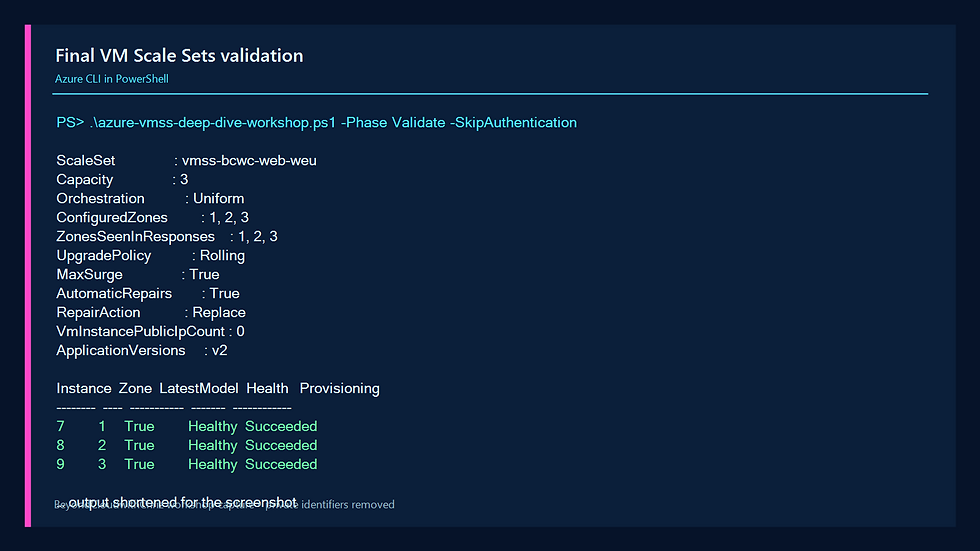
STEP 16 — FINAL VALIDATION
The final checks should prove:
Uniform orchestration.
Three configured zones.
Capacity returned to three.
No public IP configuration on VMSS instances.
Automatic repairs enabled with Replace.
Rolling upgrade policy enabled with MaxSurge.
Every instance Healthy and on the latest model.
Every successful response reports version v2.
.\azure-vmss-deep-dive-workshop.ps1 `
  -Phase Validate `
  -SkipAuthentication
Figure 21 — Final validation passes for zones, private instances, automatic repairs, rolling policy, health, and version v2.
TROUBLESHOOTING
Autoscale never triggers:
Confirm that the systemd CPU unit is active and that its Python process uses close to 100 percent CPU. Then query Azure Monitor metrics. Guest CPU can rise before the platform metric appears.
The Application Health state stays Unknown:
For extension version 2.0, return HTTP 200 and include the exact JSON field ApplicationHealthState with value Healthy or Unhealthy. A connection failure or HTTP error prevents the extension from reading the rich state.
Automatic repairs returns a BadRequest about two health sources:
Keep one VMSS repair-health source. In this design the Application Health extension is the VMSS health source. The Load Balancer rule still keeps its own /lbhealth traffic probe, but the VMSS model does not reference that probe as an additional repair source.
The unhealthy backend still receives traffic:
Verify that /lbhealth returns HTTP 503 on the broken instance and that the Load Balancer rule uses hp-http. Wait for two failed probes.
Run Command CPU load stops immediately:
Use a systemd unit instead of relying on nohup. Run Command can clean up child processes when its extension session ends.
Extension settings fail JSON parsing in PowerShell:
Write the JSON to a UTF-8 file and pass the file path to --settings. This avoids native argument quote removal.
Rolling upgrade does not start:
Confirm that the upgrade policy is Rolling, Application Health reports Healthy, the extension model changed, and all instances are eligible for the latest model.
CLEANUP — DELETE EVERY WORKSHOP RESOURCE
Cleanup is part of the lab, not an optional afterthought. Delete the isolated resource group, poll until Azure says it is absent, and delete the temporary SSH keys and local settings files.
.\azure-vmss-deep-dive-workshop.ps1 `
  -Phase Cleanup `
  -SkipAuthentication
The script issues an asynchronous resource-group deletion and keeps polling az group exists. It reports PASS only when Azure returns false and the local temporary key files are gone.
Figure 22 — The workshop resource group is Not found, both temporary key files are deleted, and no chargeable lab resources remain.

KNOWLEDGE CHECK
1. Why use a VM Scale Set instead of three unrelated VMs?
2. What is the difference between /health and /lbhealth in this workshop?
3. Why does rich Application Health return HTTP 200 for the Unhealthy state?
4. What does the autoscale cooldown prevent?
5. Why can the replacement instance slot be the same or different after a Replace repair?
6. What does MaxSurge change about rolling-upgrade capacity?
7. Why must VMSS instances have no individual public IPs here?
8. Why is resource-group deletion the safest cleanup strategy for this lab?
ANSWERS
1. A VM Scale Set applies one model, lifecycle, health, scale, and upgrade policy to a fleet.
2. /health reports the rich application state to the extension; /lbhealth controls whether the Load Balancer sends client traffic.
3. The extension must receive and parse the response body to read ApplicationHealthState: Unhealthy.
4. It prevents repeated scale actions before the environment has stabilized and new metrics have arrived.
5. Replace creates a new VM from the latest model. Azure may reuse the old slot or allocate a new slot; the VM identity and disk change either way.
6. MaxSurge creates a new-model instance before an old-model instance is removed, temporarily increasing capacity.
7. The Standard Load Balancer is the single controlled public ingress point.
8. Every workshop component has the same isolated lifecycle, so deleting the group removes the full dependency set together.
WORKSHOP RESULT
You built a three-zone Azure VM Scale Set behind a Standard Load Balancer, proved real CPU-driven autoscale, separated traffic health from rich application health, watched Azure replace an unhealthy instance, delivered version v2 through a MaxSurge rolling upgrade, and removed the entire environment.
NEXT STEPS
Extend this design in a future lab with managed identities, Key Vault, Azure Monitor alerts, autoscale notifications, an internal Load Balancer, Application Gateway, or an Infrastructure as Code implementation.
Comments